-
Login to your Google Cloud console: https://console.cloud.google.com/
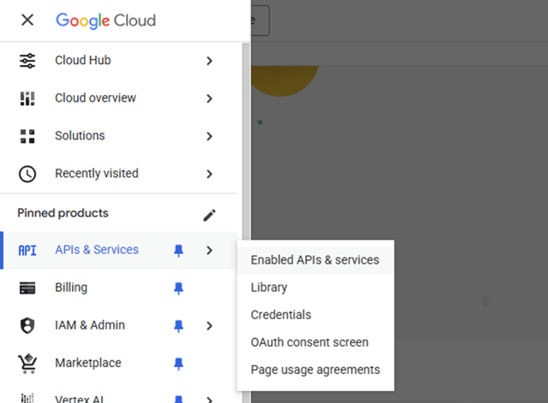
Go to APIs and services and select Create a project.
-
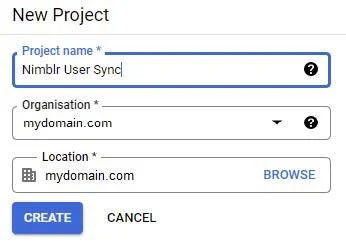
Name your project, f.ex. “Nimblr User Sync”, select your organization and location, then click Create.
-
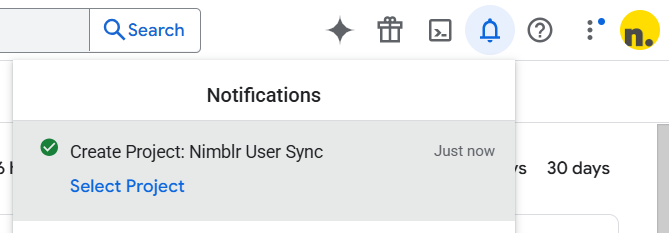
Click Select Project in the notification that shows.
-
In the left menu, under APIs and services click Enable APIs and services. Click Enable APIs and services
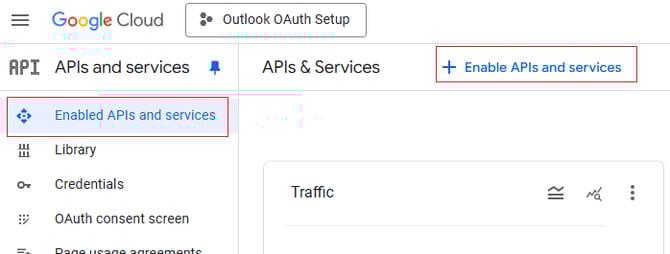
-
Use the search field and type Admin SDK API and click Admin SDK API when shown in the search results.
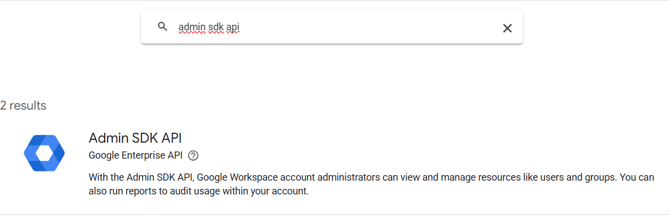
-
On the next screen click ENABLE.
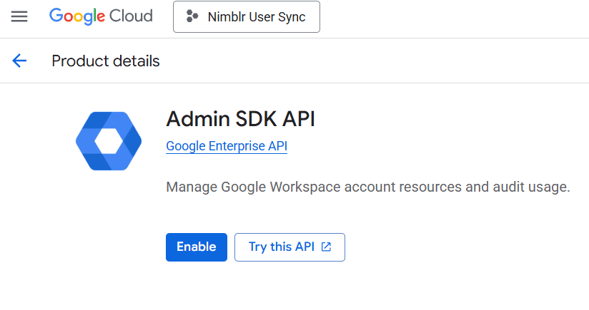
-
Now go to the Oauth consent screen
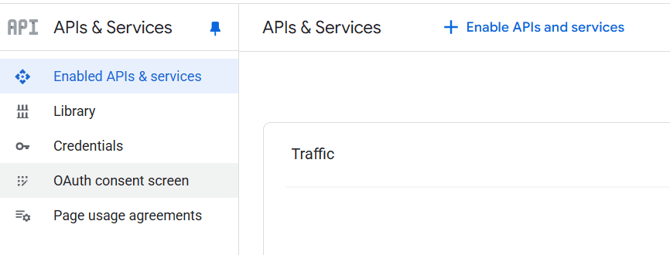
-
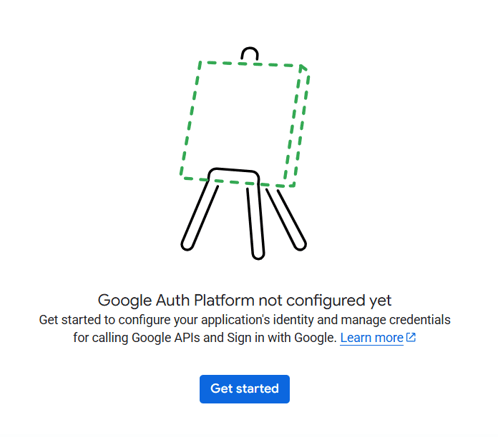
If you have not configured the Google Auth Platform you will have to do it in this next step.
-
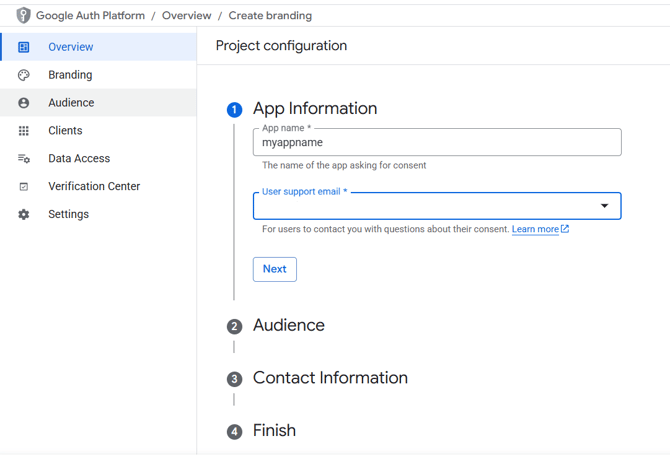
Configure the Project with the app name your prefer and use an email that will be connected to your admin. Fill in the Audience and Contact Information and then read and agree to the terms to Finish the setup.
-
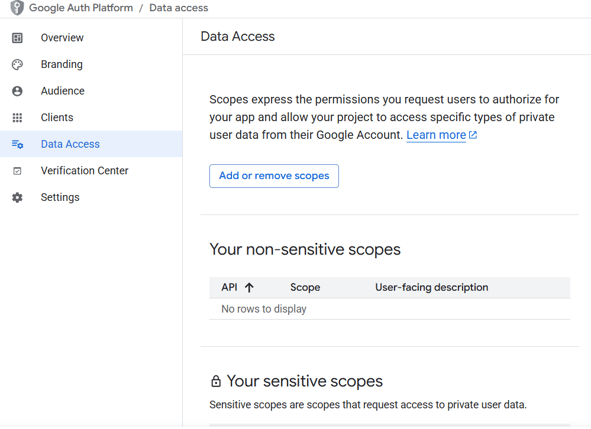
On the left side of the screen, select Data Access and click Add or remove scopes, find and add the following scopes:
-
directory.group.readonly
-
directory.user.readonly
-
directory.customer.readonly
-
directory.resource.calendar.readonly
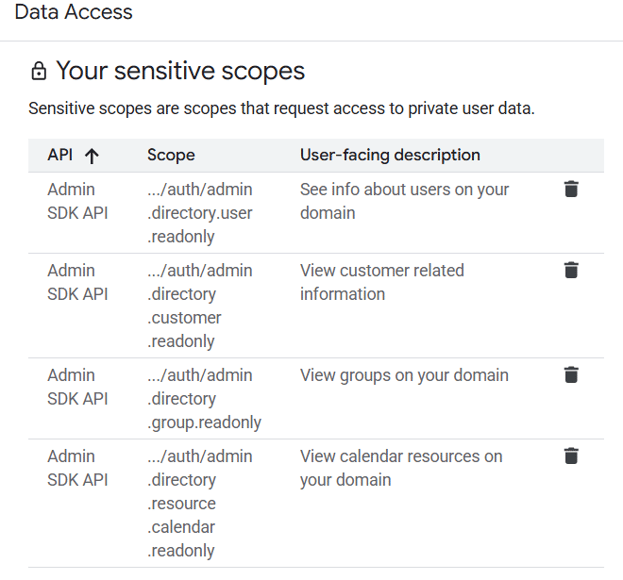
When all scopes are entered, click Update and Continue, and you should see the scopes presented like in the picture above: Scroll down and click Save.
-
-
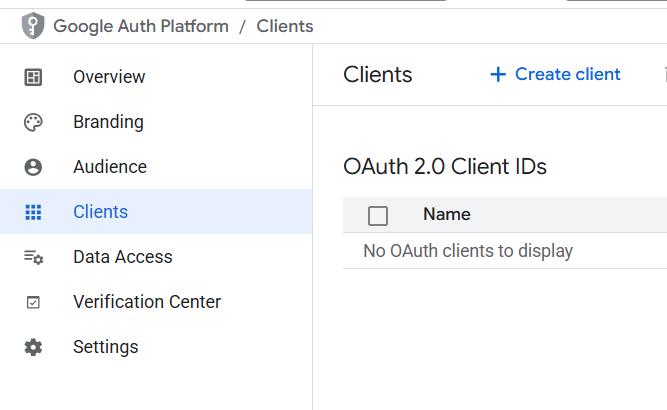
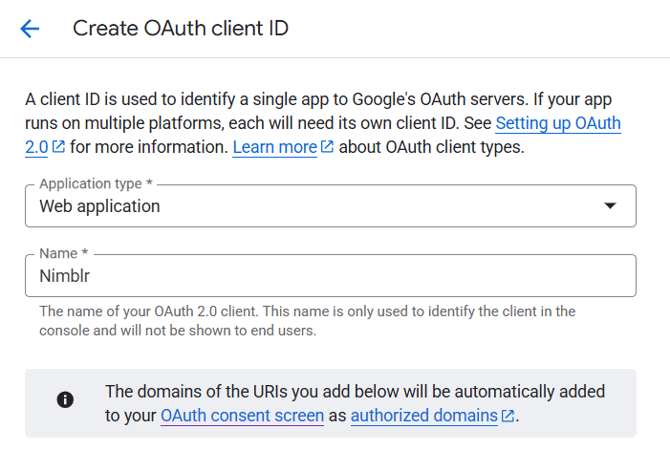
Select Clients in the left-hand menu, enter a name (e.g. 'Nimblr'). Scroll down to Authorised redirect URIs and click Add URI.
-
Create Client:
-
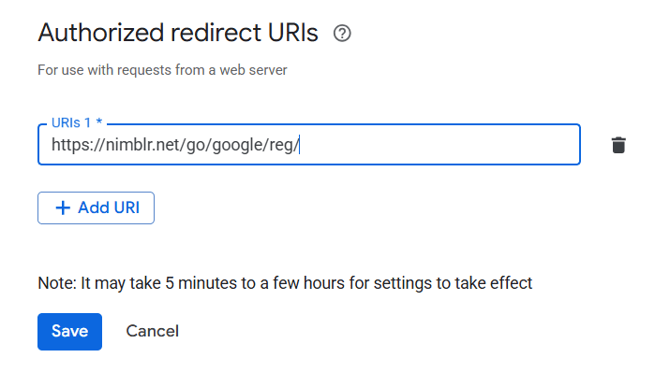
Scroll Down and Enter https://nimblr.net/go/google/reg/ and click Create.
-
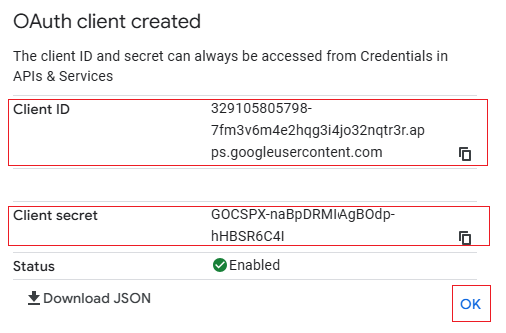
Copy Your Client ID and Your Client Secret and save them in a document, then click OK. The credentials will be needed in a later step.
-
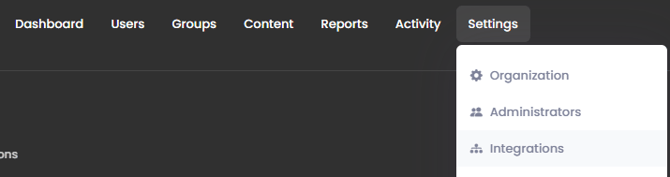
Login to your Nimblr account at https://nimblr.net and navigate to the Integrations section under the Settings menu and select Integration type Google.
Select the Integration Type: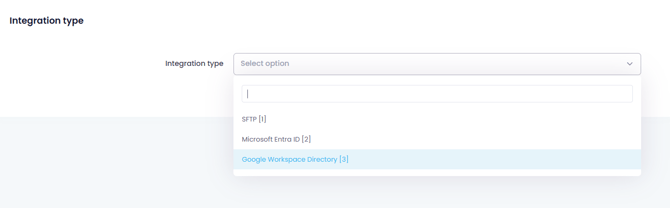
-
Paste the Client ID and the Client Secret from the previous steps into the form. Click Save Changes and a consent screen like below should show.
Click Allow.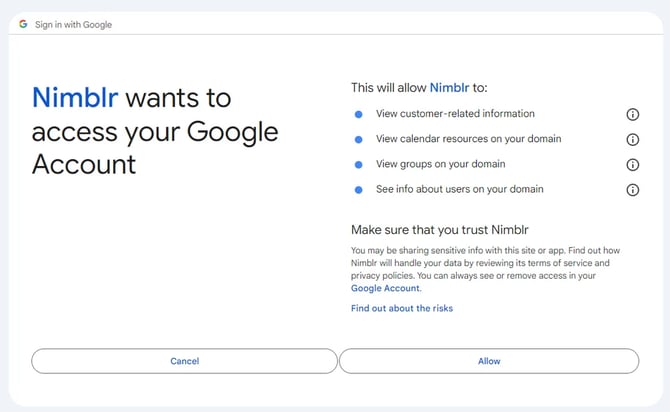
-
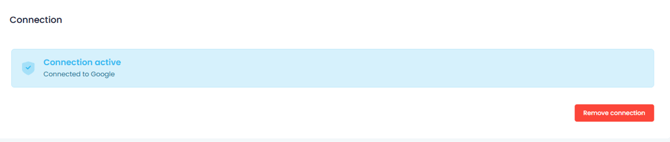
Connection to Google Workspace should now be active and a status box like below should now show.
-
Choose the User Activation you wish to use. This can be changed at any time.
-
Activate new users manually - This option will set status “Pending” to any new user(s) that is added from the external directory synchronization. An administrator will have to manually activate the users for the training program to start.
-
Activate new users automatically - This option will automatically activate any new user(s) that is added from the external directory synchronization and immediately start sending training invitations and/or simulations to the user(s).
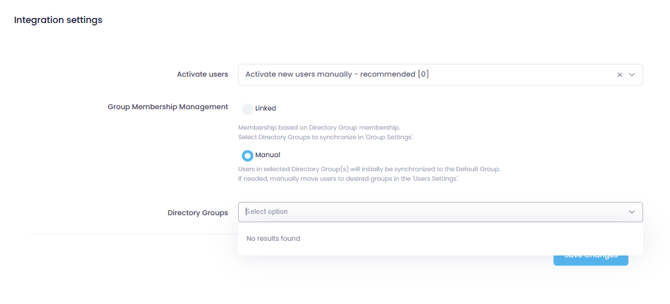
You’re now asked to select the preferred Group membership method and click
Save Changes.
-
Linked - Enables you to assign one or more external directory groups to Nimblr groups. This option is often used in multi-language enterprises with employees in different countries to automatically give them membership in a Nimblr group that has a specific language configured. The assigning of groups are made in the Groups > Integration settings after the Integration settings have been completed.
-
Manual - Will synchronize all new users to the Nimblr default group and allows for users to be manually moved into different Nimblr Groups.
-
Select what Groups to be synchronized. This option is only available if Group Membership is set to Manually. Add the external directory group(s) that should be synchronized and assigned to the Nimblr Default Group. You may still create additional Nimblr Groups and manually assign users to different Nimblr Groups. To use this option you must manually specify the name of the Azure Group to synchronize in the Nimblr configuration window.
-
Click Save Changes.
Assigning Groups:
(ONLY for Linked Group Membership option)
After completing the Directory Integration configuration Google Directory groups may now be assigned to a Nimblr group. You might want to create additional Nimblr groups before starting assigning external directory groups to Nimblr Groups - this is done from the Groups menu, click Add New Group to add a new Nimblr Group.
The new groups settings will be inherited from the ‘default group’ but may be changed/updated independently. To assign users from a specific external directory group to a Nimblr group navigate click Edit on the Group you wish to associate with one or more external directory groups, then click Integration menu.
Add one or more external directory groups and click Save Changes. 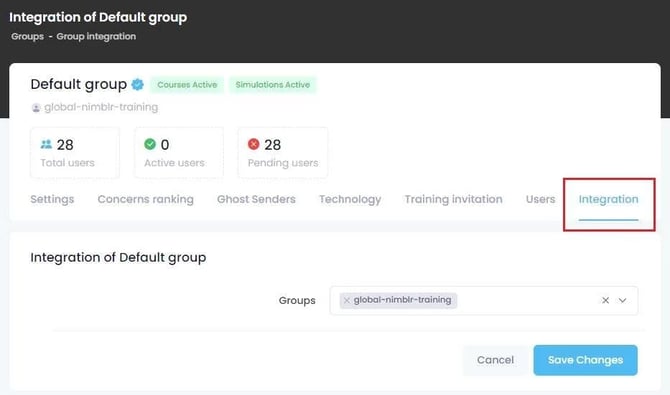
Navigate to Settings > Integrations and click Synchronize now to resync all users.
Manual Synchronization and Settings:
The external directory user synchronization automatically runs every 24 hours. You may initiate a manual synchronization at any time by navigating to the Integrations under the Settings menu and click Synchronize now. You may also reconfigure or deactivate the external directory Synchronization at any time clicking the Remove Connection or Change connection in the Integrations section of the Settings menu.
Available Google Groups:
The list of available external directory groups is dynamic; an external directory group that has already been assigned to a Nimblr Group will not show in the list.
One user - one group:
Since a user may only be a member of one Nimblr group - make sure just to use external directory groups where no user is presented in more than one of the external directory groups. Users that are located in multiple directory groups that are synced to Nimblr groups can only ever be a member of one group in Nimblr. The group order will define the sync location. The default group is the first group and primary location.
Managing AD Groups in Nimblr:
When integrating Active Directory (AD) with Nimblr, it's essential to carefully manage the AD groups you assign to ensure proper license usage and user control.
License Consumption Warning:
Any user included in an AD group that is assigned to Nimblr will automatically consume a Nimblr license, regardless of their status in your Active Directory.
Important Details:
-
All users in assigned AD groups count toward license usage.
-
Paused, disabled, or inactive users in AD are not recognized as such by Nimblr.
-
Nimblr treats all users in the AD group as active.
This means that even if you pause or disable a user in AD, they will still be counted as an active user in Nimblr and will use a license.
Recommended Best Practice:
To maintain control and avoid unnecessary license usage:
-
Create Nimblr-exclusive AD groups that include only users who should actively use Nimblr.
-
Regularly audit the members of these AD groups to ensure they reflect only valid, intended users.
-
Avoid assigning general or broad AD groups (e.g., "All Employees") unless every user in that group should have access to Nimblr.
Avoid:
-
Assigning a group like All_Company_Users where some members are interns, paused staff, or system accounts.
Recommended:
-
Assign a specific group like Nimblr_Active_Users containing only the users who need training and should be counted toward licenses.
Disclaimer:
Once an integration is added to your organization, manual user management through the Portal will be disabled. All user-related actions—including adding, removing, or editing user email addresses—must be performed directly through your Active Directory (AD).