Connecting your Microsoft Report Button with Nimblr will allow the Administrators & Group Auditors to track and display in your portal which users are in fact reporting the Nimblr Phishing Simulations or not.
So how does the Report Button integration work?
When a user clicks the Microsoft “Report” button:
- Microsoft sends a copy of the reported email to a shared mailbox that you configure.
- Nimblr does not access user mailboxes.
- Nimblr only reads emails that exist inside the dedicated shared mailbox.
- Nimblr analyzes whether the reported message matches an active phishing simulation.
- The user receives an email notification with positive feedback after successfully reporting a Nimblr simulation
- The result is displayed in the Nimblr portal for reporting and tracking purposes.
You can find the FAQ for the MS Report Button Integration here
Create a new shared mailbox
-
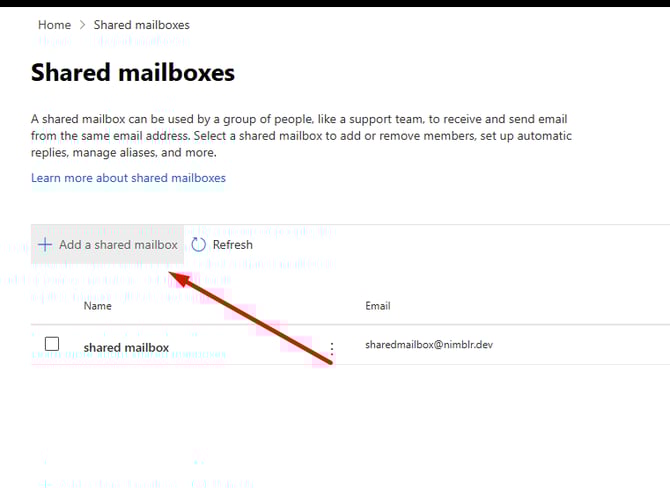
Go to: https://admin.cloud.microsoft/?#/SharedMailbox and create a new shared mailbox.
-
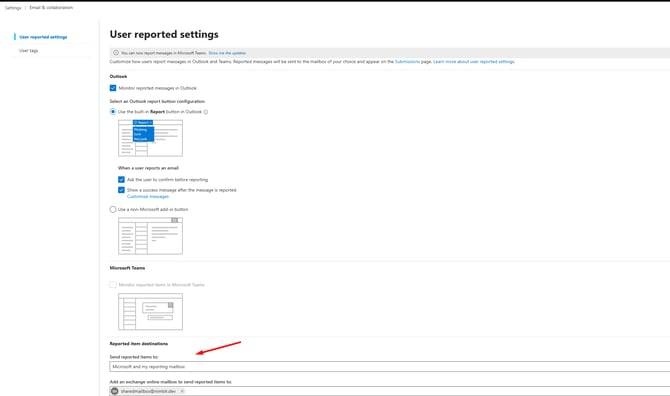
Go to: https://security.microsoft.com/securitysettings/userSubmission and set “Send reported items to:” > “my reporting” mailbox
-
Select the shared mailbox you just created.
In the Customize messages you can choose to customize the message the user receives after reporting the email.
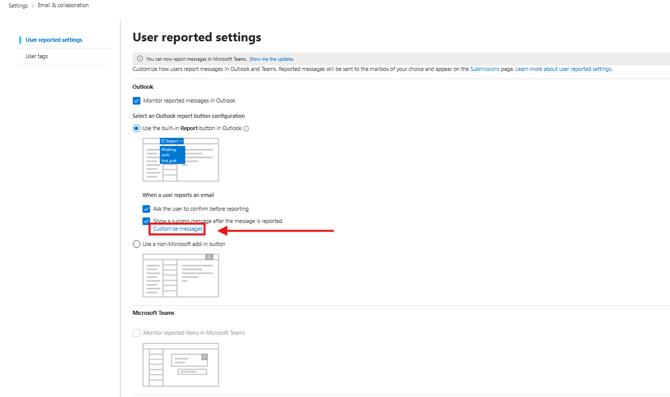
Click on Customize messages then Add Customized message and choose the option Phishing Reported and then fill in Title & Description.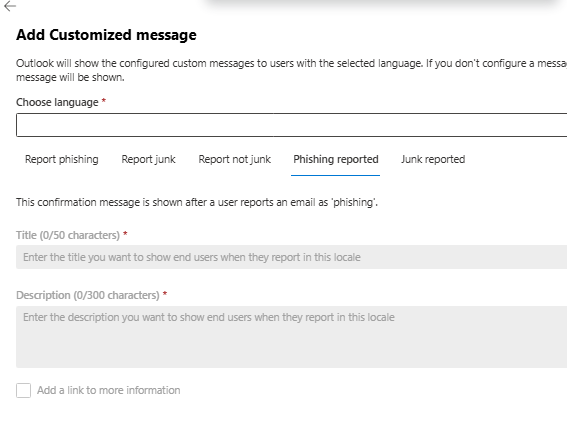
Create and configure a New App Registration
Why is this needed?
The integration uses:
- Microsoft Graph
- Application permission: Mail.Read
Application permissions are required because:
- The shared mailbox is not tied to a single signed-in user session.
- The integration runs as a background service.
suitable for automated processing of a shared mailbox.
-
Go to: https://entra.microsoft.com/#view/Microsoft_AAD_RegisteredApps/ApplicationsListBlade
-
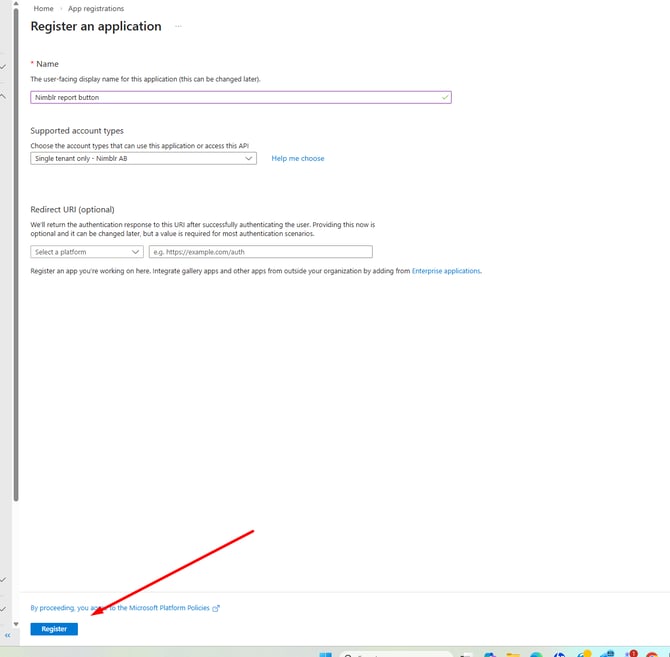
Then create a new app registration
-
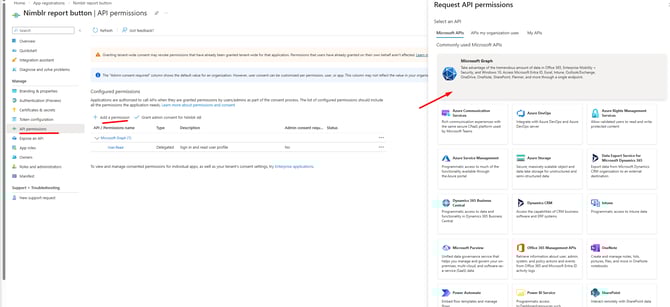
Go to API permissions, click: Add a permission, and select Microsoft Graph.
-
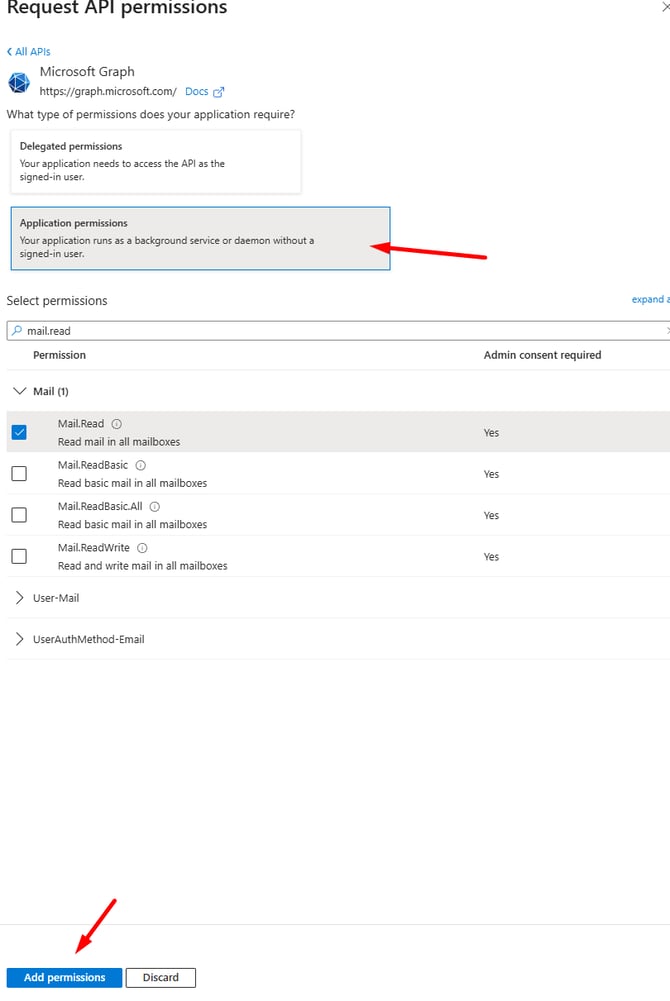
Choose: Application permissions,select Mail.Read and click Add permissions then
Click Grant admin consent for… and select Yes when prompted
-
Go to Certificates and secrets and create a new secret.
Note: If your organization enforces strict security policies in Microsoft 365, creating a new client secret may be restricted. You may need an Admin to grant you the right role (e.g. Application Administrator) or temporarily adjust your tenant's application management policy before the secret can be created.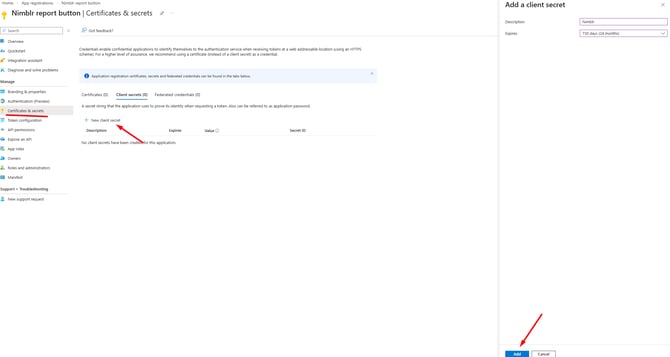
-
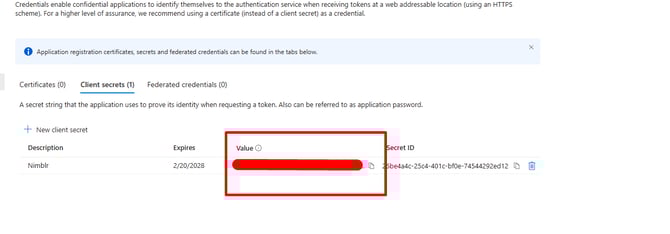
Copy the Value (Not the secret ID) and paste it in a text document for later
-
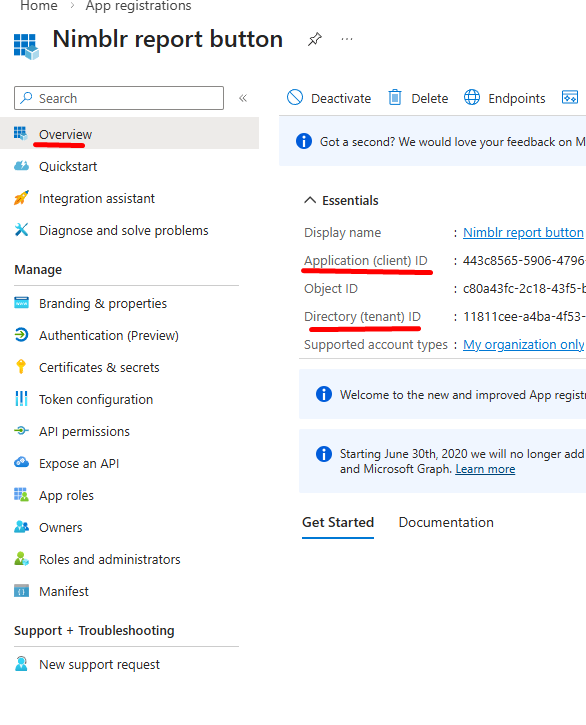
Go to Overview and copy: Application (client) ID and Directory (tenant) ID in the same document as the Client secret
Limiting the permissions
Nimblr strongly advocates for the principle of least privilege. Assigning accounts only the minimum permissions necessary to perform their tasks helps reduce security risks and strengthens your organization's overall protection.
By default, Mail.Read (Application) technically grants the ability to read all mailboxes in the tenant.
However:
- Nimblr only queries the specific shared mailbox configured
- No logic exists to enumerate or access other mailboxes
What this does:
- The app can only access mailboxes inside that security group
- If it tries to access any other mailbox, access is denied by Exchange Online
- Enforcement is handled by Microsoft’s backend
Set up group & policy:
-
Open up PowerShell
Run the following command to sign in:
Connect-ExchangeOnline -UserPrincipalName
Create a new distribution group:
New-DistributionGroup -Name "API-Access-Group-V2Security" -Type Security -members yoursharedmailbox@domain
Add the policy:
New-ApplicationAccessPolicy -AppId "" -PolicyScopeGroupId "API-Access-Group-V2Security@yourdomain.com" -AccessRight RestrictAccess -Description "Restrict app to shared mailbox only"
Configure in the Nimblr Portal
-
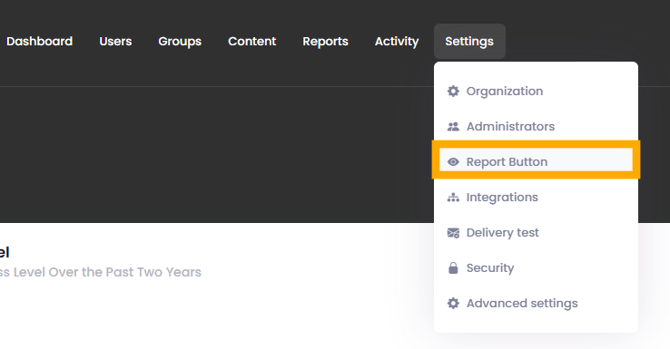
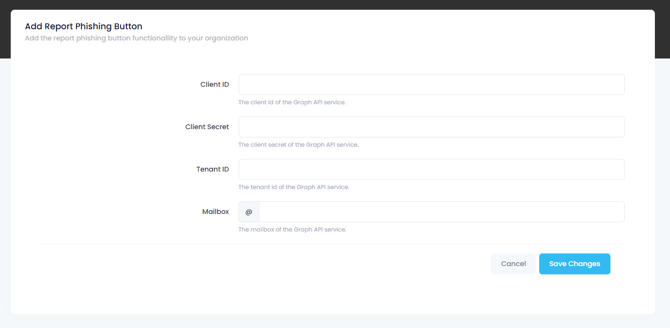
Go to Settings tab > Report Button
-
Fill in the following credentials: Application (client) ID, Directory (tenant) ID and Client secret
-
Select the mailbox you created in step 1.
- Optional but recommended: You can add our course to the library by going to Groups > Edit > Technology > Click the checkbox Report Phishing Emails.
 The course is explaining how to make the best use of Microsofts built-in Report Button.
- Now it's Done!
Allow up to 48 hours for the policy to take effect.