The Nimblr Security Training Portal gives end users a self-service place to log in and track their own security awareness journey. All training continues to be delivered directly to their inbox — the portal simply adds visibility, letting users review past courses and simulations and revisit completed training whenever they need to.
What Is the Security Training Portal?
It's a self-service area at portal.nimblr.net where employees can log in to review their security awareness progress, including past courses, phishing simulations, and simulation outcomes (for example, whether a simulation email was clicked, ignored, or reported).
How Do End Users Log In?
There's no separate password to set up or remember. Login works one of two ways:
- Magic link: The end user goes to portal.nimblr.net/login, enters their email address, and receives a login link by email. Clicking it logs them straight in.
- Direct link from a notification: Course and simulation notification emails (and Microsoft Teams cards) now include a "View all" link that takes the end user straight into the portal.
If someone enters an email address that isn't in the system, they'll still see the same confirmation message, so there's no way to tell from the login screen whether a given address is registered.
What Can End Users See There?
On the Simulations overview, end users can see their own simulation history: which ones were sent, and the outcome (Clicked, Ignored, Reported, etc.) along with the date & their settings.
This is what the End User will see when they log in to the portal:
Short Summary: 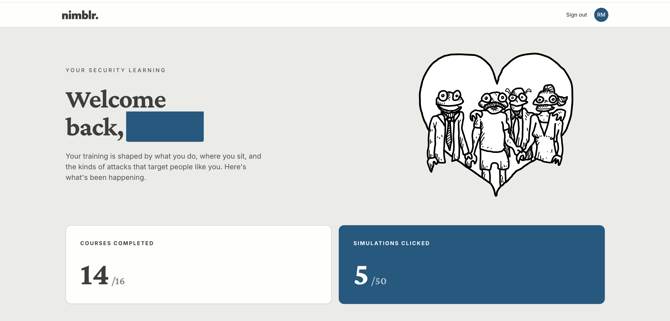
Progress Breakdown: 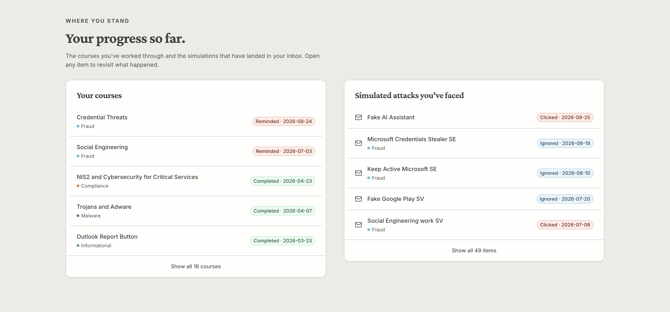
User Information: 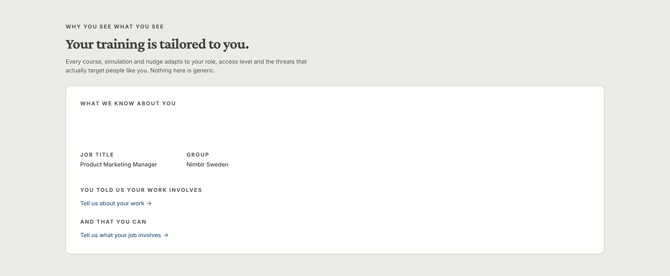
Can Admins Adjust What a User Has Set?
Yes. If an end user makes changes to their own settings through the portal, an admin can go in and adjust those same settings from that user's Edit User page in the organization admin view.
Note: this option only appears on a user's Edit User page after that end user has submitted data through the portal at least once. If they have not yet logged in and submitted data, the option will not be visible.
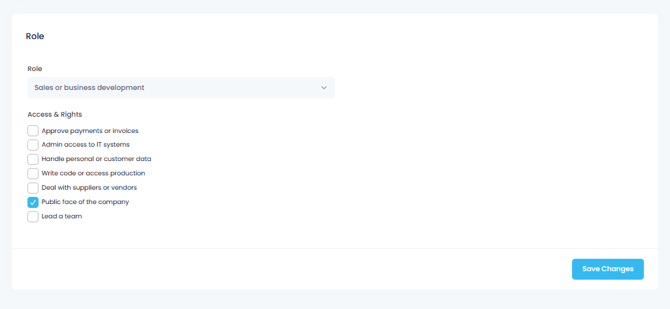
Roles:
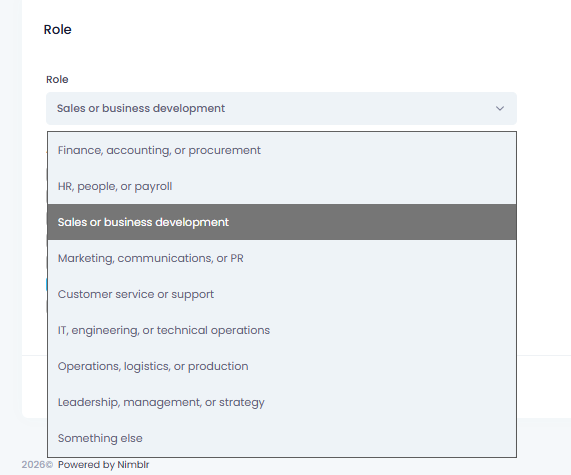
Do I Need to Set Anything Up?
No setup is required. The portal link is automatically included in the course and simulation notifications your users receive. There is nothing to enable or configure in your organisation's settings.
Does it Cost Anything?
No. The Security Training Portal is included at no extra cost as part of the Nimblr base package. You as an administrator can choose to contact our support team if you prefer to opt-out of this feature.
Troubleshooting
An end user says they didn't receive a login link.
Ask them to check their spam or junk folder, and confirm that they used the exact email address their organisation has on file in Nimblr. A typo, alias, or different personal address will not be recognised.
The "View all" link in a notification isn't showing up.
This link was added to course and simulation notifications automatically. If it's missing, it may be an older notification sent before the rollout. New notifications will include it.
I can't find where to edit a user's portal settings.
This option only appears on that user's Edit User page after they've submitted data through the portal at least once. If they haven't yet, there's nothing to adjust.
If you have any further questions, feedback or requests just reach out to us and Submit a Ticket or send us an email at support@nimblrsecurity.com