
This guide explains how to allowlist Nimblr course invitation emails in Microsoft Exchange Online.
Prerequisites: You must have Microsoft 365 global administrator or Exchange administrator permissions to complete the steps in this guide.
In most cases there's no need to allowlist Nimblr course invitations, as they are legitimate emails that use the correct SPF, DKIM, and DMARC authentication records. However, allowlisting them can still be useful to ensure they are delivered to users' priority inboxes.
Allowlist the sender address
1. Open the Microsoft Defender portal at https://security.microsoft.com/antispam. Navigate to Email & collaboration > Policies & rules then click Anti-spam inbound policy (Default).
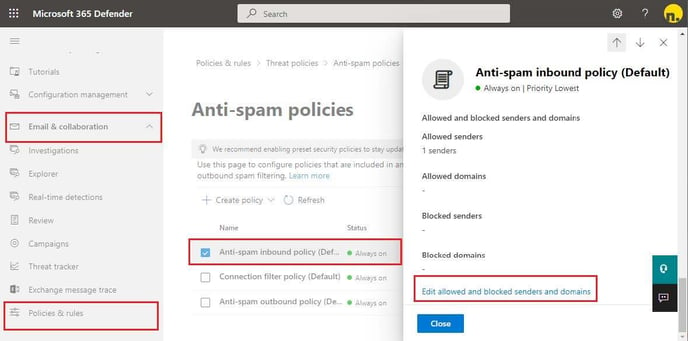
2. Click Edit allowed and blocked senders and domains. Click Manage sender(s), then click Add senders and enter the addresses training@nimblr.net and training@awrns.net. Click Add Senders, then click Done, and finally click Save.
Bypass Clutter filtering for course invitations
1. Open the Exchange Admin Center at https://admin.exchange.microsoft.com/. Navigate to Mail flow and select Rules. Click Add a rule (+) and select Create a new rule
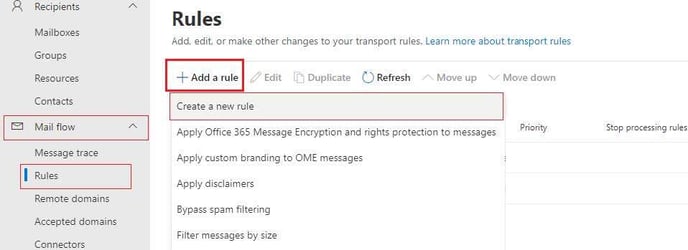
2. Name the new rule, for example: “Bypass Clutter filtering for course invitations”.
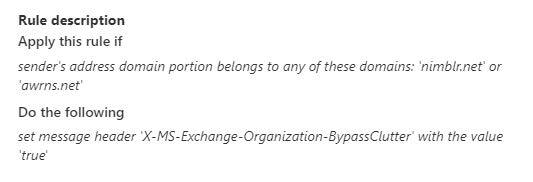
3. Under the Apply this rule if drop-down, select The sender > domain is. Enter nimblr.net and click Add, then enter awrns.net and click Add. Click Save.
4. In the Do the following section select Modify the message properties in the left drop-down and set a message header in the right drop-down.

5. Click the “message header Enter text” and type X-MS-Exchange-Organization-BypassClutter (This field is case sensitive) and click Save.
6. Click the “value Enter text” and type true (This field is case sensitive) and click Save. The action should now look like the picture above.
7. Click Next and then Next again to review the new Mail Flow rule.
8. Confirm that the rule conditions look like in the picture below and click Finish.
Wait for the rule to be saved, then click Done.
Nimblr course invitation emails from nimblr.net and awrns.net are now allowlisted and will be delivered to users' priority inboxes in Microsoft Exchange Online.