Nimblr can send course invitations and reminders to your employees in Microsoft Teams or Slack, so they see them where they already work instead of only in their inbox. Email is the default, and you can keep using it alongside either app.
Important: Teams and Slack delivery are in beta, and there is no general availability date yet. Both are switched on for each organization on request. Direct customers can ask their Customer Success Manager, and MSP partners can ask their Channel Sales Executive. You can also contact Support.
Where to find them
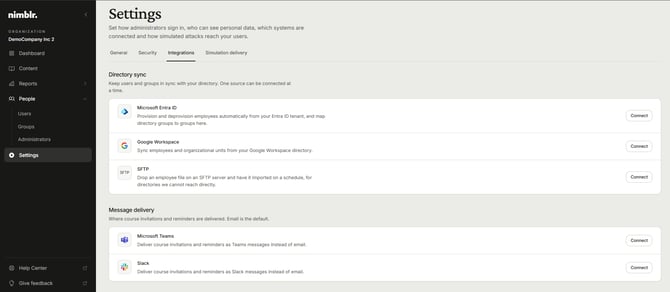
Once delivery is switched on for your organization, go to Settings in the Admin Portal and select the Integrations tab. Microsoft Teams and Slack are listed under Message delivery.
Microsoft Teams
Before you start with Teams
- Your organization uses Microsoft Teams, and Teams is licensed in your Microsoft 365 tenant.
- You have a Microsoft 365 Global Administrator account. Installing the Nimblr app requires admin consent.
- Teams notifications have been turned on for your organization as part of the beta.
Install the Nimblr app in Teams
The app is installed for your whole organization in one go, so employees don't need to install anything.
- Open the Teams setup link you received from your Nimblr contact.
- Sign in with your Microsoft 365 Global Administrator account.
- Review the permission request and accept it. Nimblr asks to add the Nimblr app to your Teams app catalog, install it for your users and read your user list so it knows who to install it for. Nimblr uses these permissions only for this installation.
- Click Install Nimblr Teams App and wait for it to finish. Nimblr installs the app in batches, so a large organization can take a few minutes.
You can run the installation again at any time. Users who already have the app are skipped, and a newer version of the app is updated in your catalog.
What employees receive in Teams
- Course invitations and reminders arrive as a Teams message from the Nimblr app.
- Each message has a View all link to the employee's Security Training Portal, where they can see their full history.
Troubleshooting Teams
- The permission request asks for an administrator. Sign in with a Global Administrator account. A regular user can't approve it.
- The app was not found in the catalog. Check that Teams is licensed in your Microsoft 365 tenant.
- The installation fails the first time. Microsoft sometimes returns a temporary error. Nimblr retries automatically, and you can also run the installation again.
- Some employees don't have the app. Guest users and resource accounts are skipped. Run the installation again to include new members.
Slack
Before you start with Slack
- Your organization uses a Slack workspace.
- An admin of your Slack workspace approves the Nimblr app. Nimblr can’t do this for you, so if you’re not a Slack admin yourself, have one with you during setup.
- Slack delivery has been turned on for your organization as part of the beta.
Connect your Slack workspace
- In the Admin Portal, go to Settings and select the Integrations tab.
- Under Message delivery, click Connect next to Slack.
- Sign in to Slack as a workspace admin and approve the Nimblr app.
What employees receive in Slack
- Course invitations and reminders arrive as a direct message from Nimblr, with a button that starts the course.
- Employees get Slack messages when their email address in Nimblr is the same as their email address in Slack.
- Everyone else keeps getting email, and so does anyone a Slack message can’t be delivered to.
Troubleshooting Slack
- An employee still gets email. Check that their email address in Nimblr matches the one in their Slack profile.
- The app can’t be approved. Only a Slack workspace admin can approve it. Ask your Slack admin to complete the step.
- Slack isn’t listed under Message delivery. Slack delivery hasn’t been switched on for your organization yet. Direct customers can ask their Customer Success Manager, and MSP partners can ask their Channel Sales Executive. You can also contact Support.
Owner: Filip Cronvall · Last reviewed: pending · Review cycle: on change · Applies to: Microsoft Teams, Slack